

If you're like most of us, you've got a desktop computer and an email program that let's you set up filters or "rules" to sort your email messages. But your mobile device has no such filter for your domain-based email, so when you are out and about, you get one big stream of mail. And that can be annoying when you're searching for that one important message.
This post will show you one way to eliminate spam (unwanted messages) on your mobile device, but still receive all of it on your desktop -- just in case there is something you want to save.
Yes, I'm sure there's an "app" for that, but the "apps" I've tested require that you teach your device to recognize spam and that's way too much trouble for me! Here's another useful method that works like a charm when you check for messages with your mobile device and your desktop computer.
In this example, I'm going to use a custom filter to keep low-scoring spam from coming to the IN box in on my mobile device (phone or tablet). Low-scoring spam are messages that are tagged by the Linksky mail server with -s- LIKELY SPAM added to the subject line.
Let's get started.
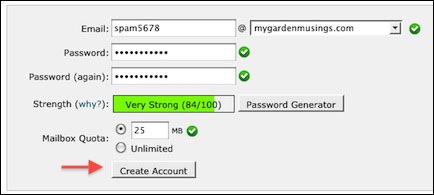
The first task is to create a new mailbox.
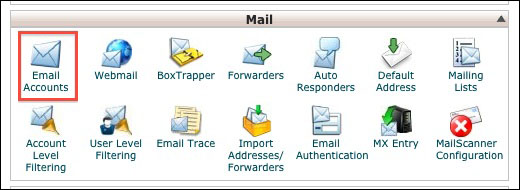
In the Mail section of my cPanel, I'll click on Email Accounts.
Next, I'll create a mailbox to collect the messages I don't want to receive on my mobile device.
The second task is to create the filter.
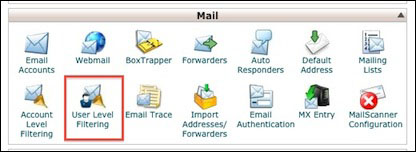
Back in the Mail section of my cPanel, I'll click on User Level Filtering.
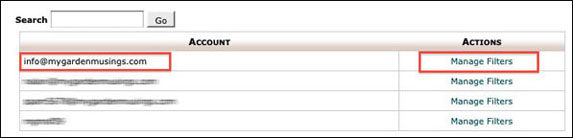
Click the Manage Filters link next to the appropriate mailbox.
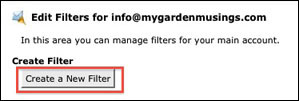
Click the Create a New Filter button.
I'll name my new filter "Low Scoring Spam".

Set up the Rules
Select the options so that the "Subject" "Contains" "-s- LIKELY SPAM".
Determine the Actions
Redirect to Mailbox and Create the filter.

Success!

The very last step is to set up a new user in the email program on my desktop to check mail for the new mailbox I created above. No changes are needed to my mobile device. The filter I've set on in my cpanel will divert any message with -s- LIKELY SPAM in the subject to a different mailbox that my mobile device does not check.
When I return to my office, I'll take a quick look at my new “low-scoring spam” mailbox and if there is nothing I want to save, I'll select ALL and DELETE.
That's all there is to it!
P.S. You can use these steps for a wide variety of rules and filers.
Please let us know if you have any questions or need further help.