

Part 1 – Get Your Email Account Settings from cPanel
- See the following article:
Get email account settings from your LinkSky cPanel
Part 2 – Setup Email in Apple Mail & Mac Mail
Use email account settings to setup Apple Mail & Mac Mail:
- Open Apple Mail or Mac Mail
- Click "Mail" (in the menu bar at the top left of screen)
- Click "Settings" or "Preferences" (on the menu)
- Click "Accounts" tab
- Click "+" button (lower left corner of window)
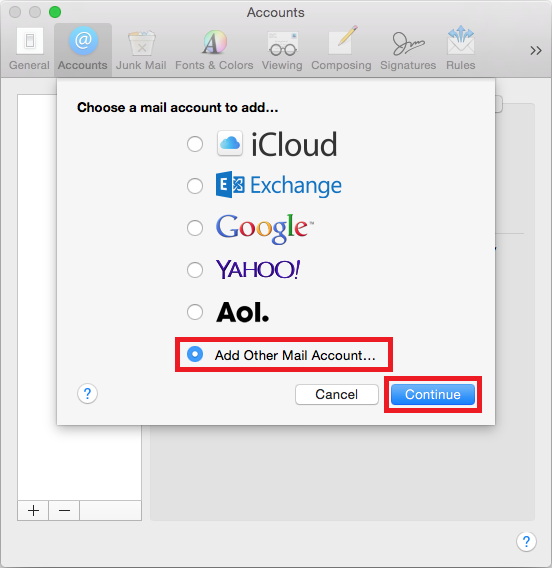
- Select "Add Other Mail Account…" and then click "Continue" button
-
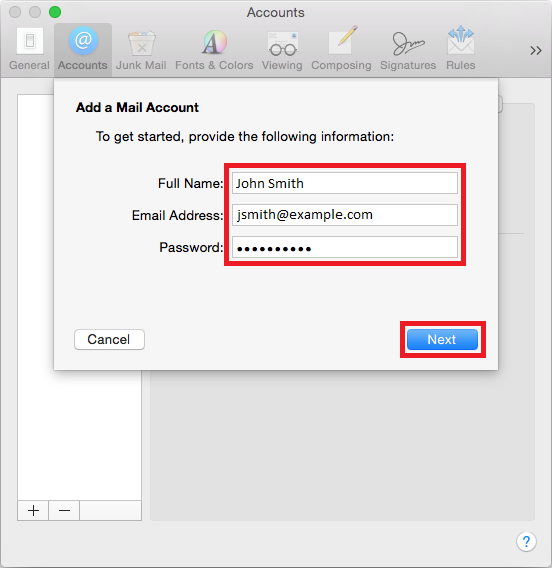
Enter your email account settings and then click "Next" button
- Full Name – Your first and last name
- Email Address – Your full email address
- Password – Your email password (this is not the same as your cPanel password)
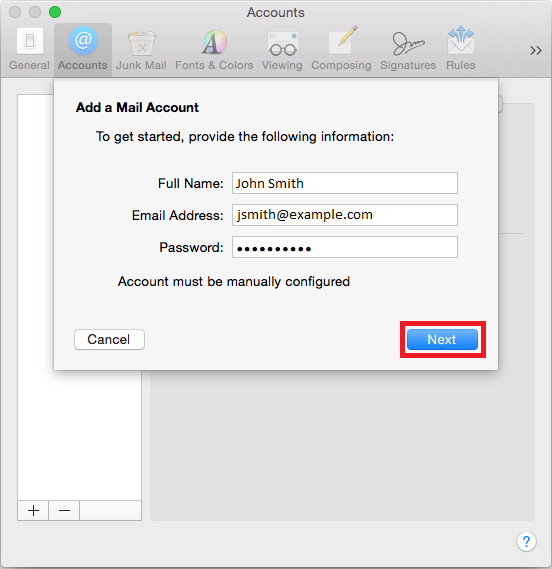
- Mail app will probably attempt to autodiscover your email account settings, which may take several minutes. Afterwards, you may receive a message stating that the "Account must be manually configured", click "Next" again
-
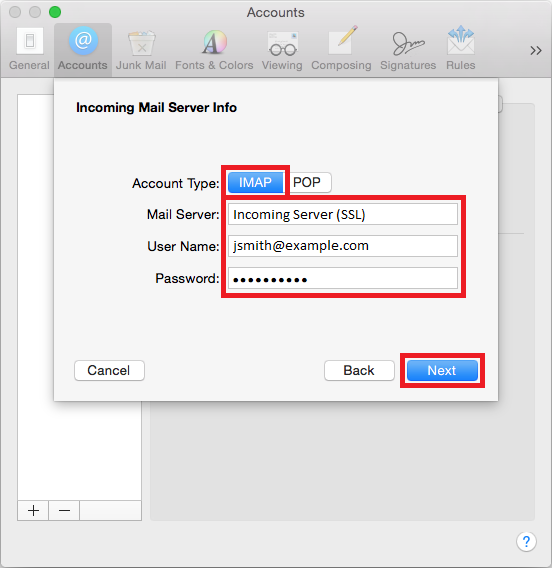
Enter your Incoming Mail Server settings and then click "Next" button
- Account Type – Select "IMAP"
- Mail Server – Use the Secure SSL "Incoming Server" setting from cPanel
- User Name – Your full email address
- Password – Your email password (this is not the same as your cPanel password)
-
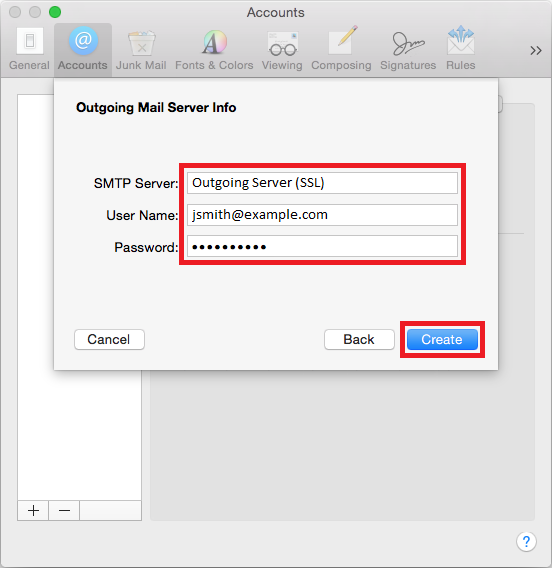
Enter you Outgoing Mail Server settings and then click "Create" button (these fields are required, even though Apple labeled them "Optional")
- SMTP Server – Use the Secure SSL "Outgoing Server" setting from cPanel
- User Name – Your full email address
- Password – Your email password (this is not the same as your cPanel password)
-
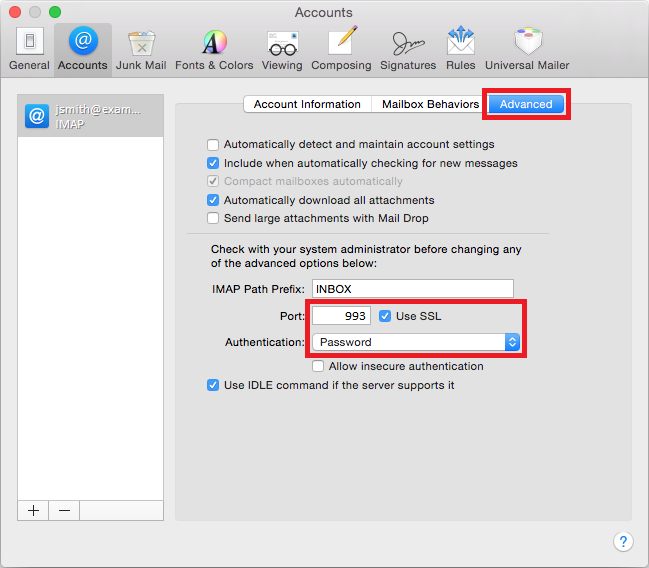
From the Accounts list, select the new account (if you have more than one account), click "Advanced" tab, and then enter the settings
- Make sure "Automatically detect and maintain account settings" is unchecked
- Port – Change to 993
- Use SSL – Must be checked
- Authentication – Change to "Password"
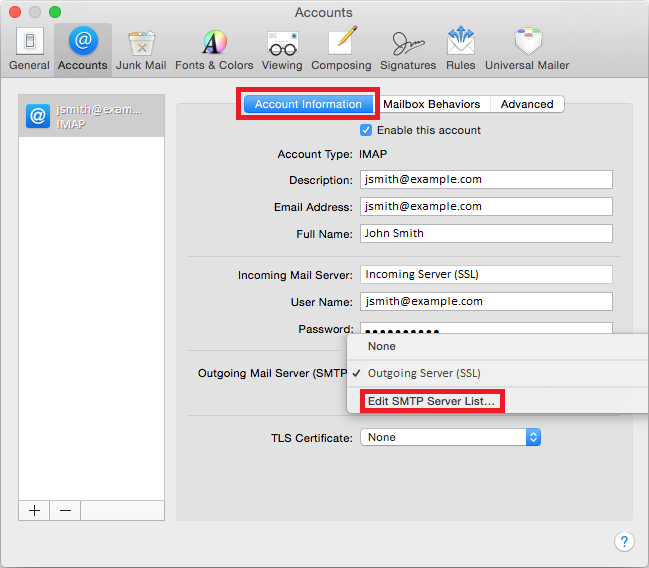
- Click "Account Information" tab and then select "Edit SMTP Server List..." from the drop-down menu next to "Outgoing Mail Server (SMTP)"
-
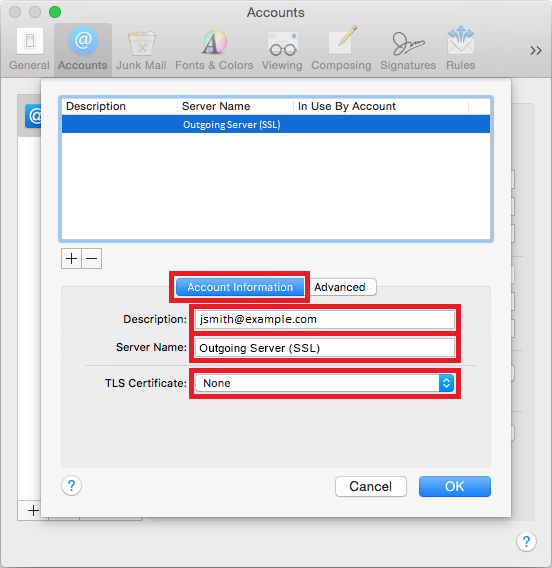
Select SMTP server, click "Account Information" tab, and then enter settings
- Description – Verify the Description has been entered; use your full email address
- Server Name – Verify the Server Name has been entered; use the Secure SSL "Outgoing Server" setting from cPanel
- TLS Certificate – Verify "None" is selected
-
Select SMTP server, click "Advanced" tab, and then enter settings
- Uncheck "Automatically detect and maintain account settings"
- Port – Change to 465
- Use SSL – Must be checked
- Authentication – Change to "Password"
- Verify "Allow insecure authentication" is unchecked
- User Name – Verify your User Name has been entered; use your full email address
- Password – Verify your Password has been entered (will show as dots); use your email password (this is not the same as your cPanel password)
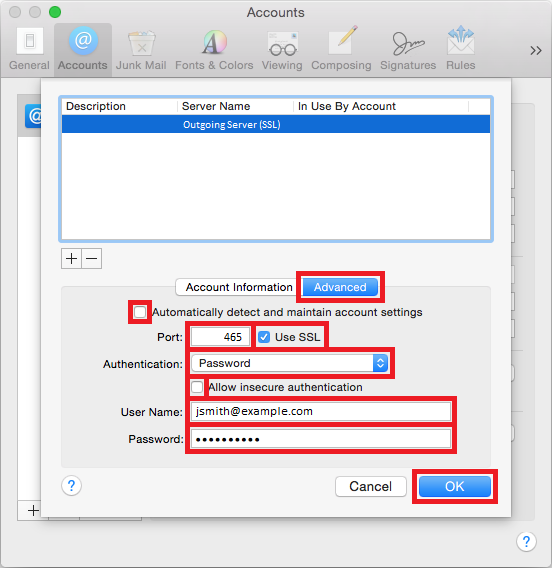
- Click "OK" button
- Close the preferences window to complete the setup
Please let us know if you have any questions or need further help.