

If you ever need to copy all the elements of a page, you can quickly do so using the "Save Page As" feature.
Duplicating a page is also sometimes a wise action to take, before making any significant changes to it. That way you will not have lost any of your work if something goes wrong, or you simply don't like the changes you've made. You can always delete the copy, and your original page will still be there to go back to.
Here's how you do it:
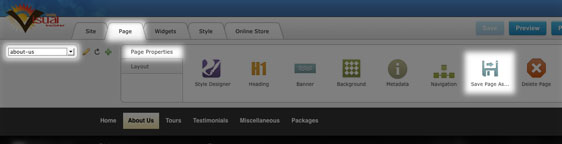
- Navigate to the page you want to copy.
- Click on the Page tab, then Page Properties.
- Click on the "Save Page As" icon.
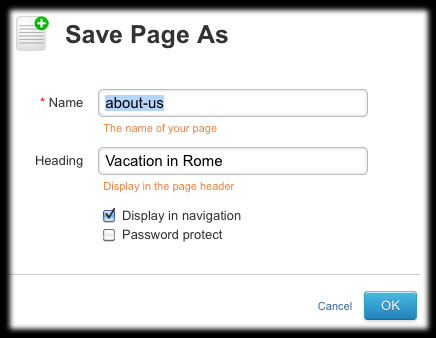
- The "Save Page As" dialog box will pop-up asking you to name your new page, change the page heading, and select whether or not to include the new page in your navigation.
- Click "OK".
Now the newly created page will appear in the page drop-down list so you can go back to it again if you chose not to include it in your menu
Please note: This option is available for web pages only. Blog pages do not give you the ability to "Save Page As."
Please let us know if you have any questions or need further help.