

Part 1 – Get Your Email Account Settings from cPanel
- See the following article:
Get email account settings from your LinkSky cPanel
Part 2 – Setup Email on Apple iPhone
Use email account settings to setup iPhone:
- Tap "Settings" icon

- Tap "Passwords & Accounts"
- Tap "Add Account"
- Tap "Other"
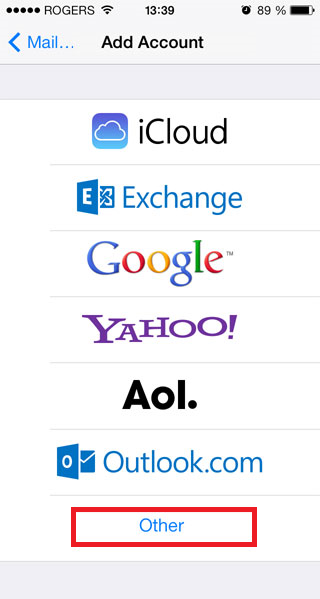
- Tap "Add Mail Account"
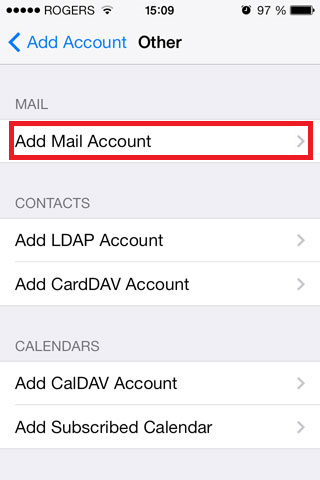
-
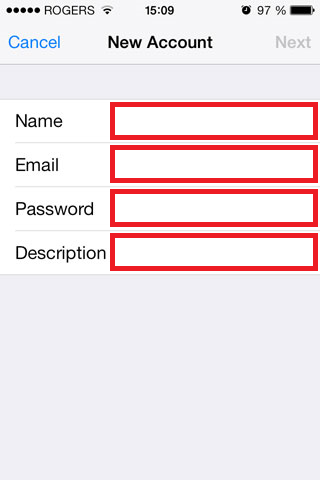
Enter your email account settings
- Name – Your first and last name
- Email – Your full email address
- Password – Your email password (this is not the same as your cPanel password)
- Description – Your full email address
-
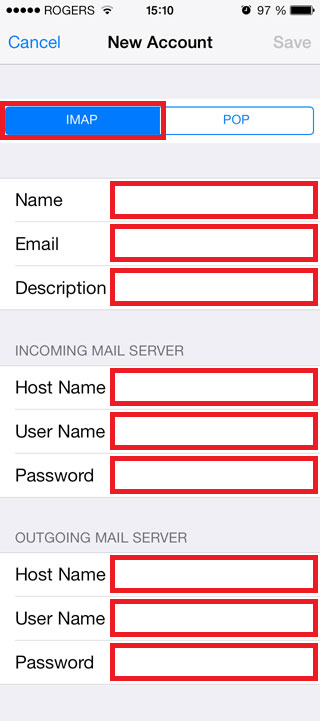
Enter your email account settings
- Select "IMAP"
- Name – Your first and last name
- Email – Your full email address
- Description – Your full email address
- Incoming Mail Server
- Host Name – Use the Secure SSL "Incoming Server" setting from cPanel
- User Name – Your full email address
- Password – Your email password (this is not the same as your cPanel password)
- Outgoing Mail Server (these fields are required, even though Apple labeled them "Optional")
- Host Name – Use the Secure SSL "Outgoing Server" setting from cPanel
- User Name – Your full email address
- Password – Your email password (this is not the same as your cPanel password)
- Tap "Save" (or "Next" or "Continue" depending on your iOS version)
-
Tap "Save"
- Note: Your iPhone may try to check your settings at this point, but will fail, since there are a few more settings to configure. This is expected behavior.
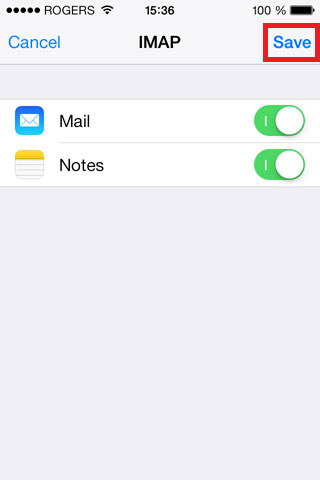
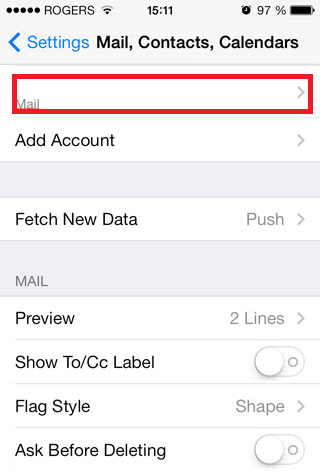
- Go back into the settings for your new email account by selecting it from your list of accounts
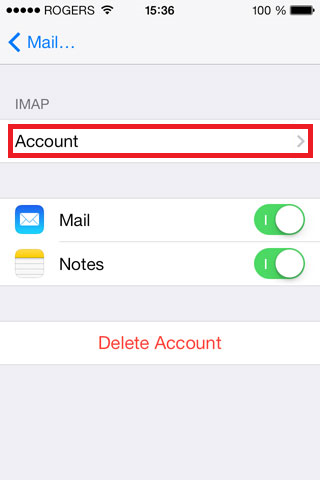
- Tap on your IMAP account again (under the "IMAP" heading)
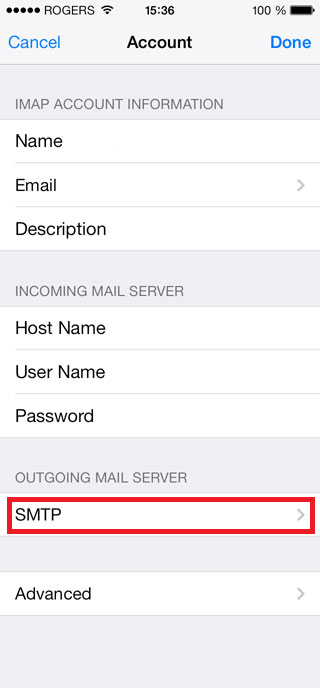
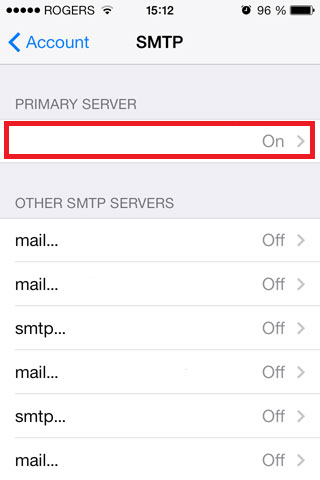
- Scroll down and tap "SMTP"
- Tap the primary server (under the "Primary Server" heading)
-
Adjust settings
- Host Name – Verify the Host Name has been entered; use the Secure SSL "Outgoing Server" setting from cPanel
- User Name – Verify your User Name has been entered; use your full email address
- Password – Verify your Password has been entered (will show as dots); use your email password (this is not the same as your cPanel password)
- Use SSL – set to ON (if it is not already)
- Authentication – set to Password (if it is not already)
- Server Port – set to 465
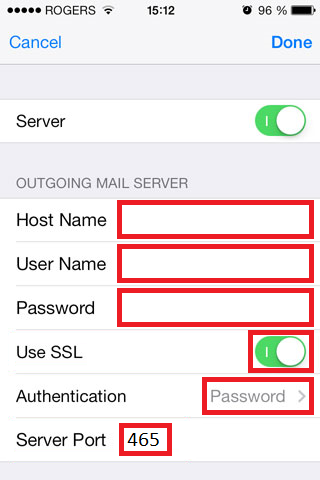
- Tap "Done"
- Tap return to "Account"
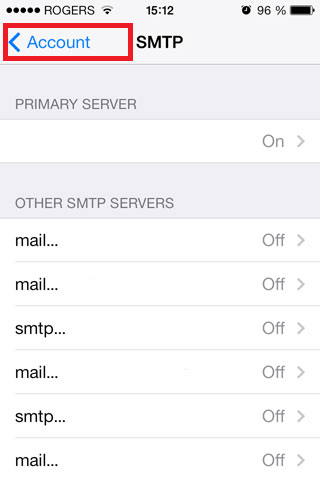
- Your iPhone will verify your settings, if you receive an error message, re-check your settings.
Please let us know if you have any questions or need further help.