


Click here to visit our LinkSkyVisual.com home page.
Sign up for your Free Trial today!
Here's how to change your style/template:
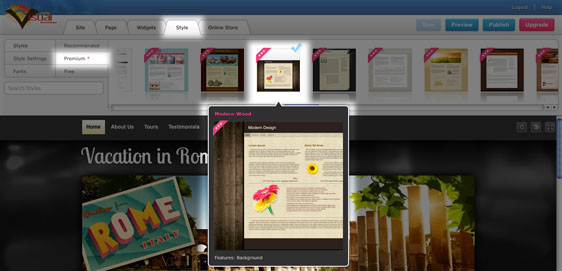
- Click on the Style tab > Premium Styles.
- You can scroll through all the styles, or separate them into free and Premium Styles.
- Many of the styles are customizable! Hover over the thumbnail to view the styles features.
- When you've decided on the style you would like to use, click on it. It will be applied to your site.
- If you're happy with the style, simply continue editing your site.
If you have added your own banner or background to the previous style, it will not be added to the new one; you will need to re-add it to your new style (if the style has the option). You can find your uploaded banner or background image in the File Manager.
Please let us know if you have any questions or need further help.