


Click here to visit our LinkSkyVisual.com home page.
Sign up for your Free Trial today!
As a LinkSky Visual member you have access to TWO collections of thousands of professional images.
One is located right in LinkSky Visual, premium images free courtesy of Fotolia.
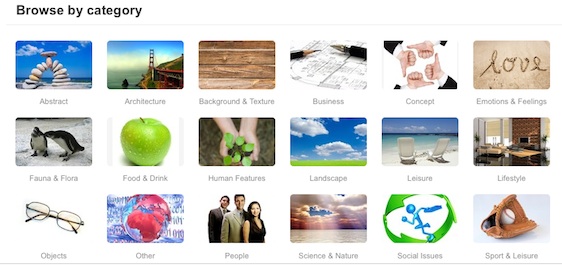
The other collection is accessed through your cpanel (hosting account control panel). Look for this button in the left column of your cpanel:

Of course, you can upload your own photos too!
The Picture Gallery Widget is a great way to quickly add large collections of photos to your LinkskyVISUAL site that look professional and sharp.
With the Picture Gallery Widget, you no longer have to drag and drop individual photos and resize them on your site, or use a third party application to create a picture gallery. With the Picture Gallery Widget, you create your entire gallery in one widget, filling it with as many pictures as you’d like. With a few clicks of your mouse, an easy-to-navigate thumbnail gallery is saved to your page!
You can use the Picture Gallery Widget to:
- Create a simple, elegant photo gallery quickly.
- Add large sets of photos to your site in batches, rather than dragging and dropping pictures individually.
- Allow visitors to see your images as easily as possible.
- Add hover text to your images to identify people, products, or processes (captions appear when your visitor’s cursor hovers over the photo).
- Edit, reorder, add or remove pictures from your gallery, quickly and easily.
- Choose from four great presentation styles to custom-fit your site’s design.
Setting up your Picture Gallery
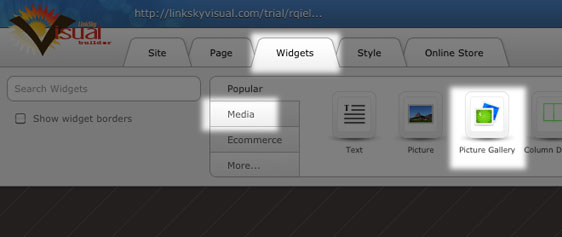
Go to Widgets > Media. Drag and drop the Picture Gallery Widget onto your page.
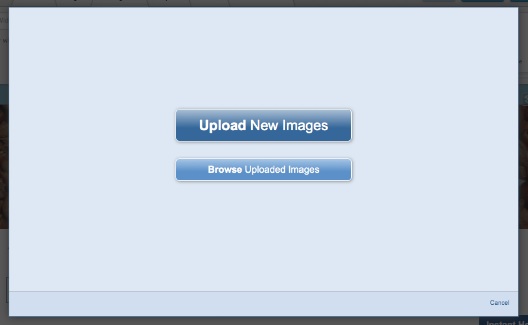
Upload a new image, or browse through the uploaded files in your File Manager.
- To upload a new image: Click on "Upload New Images". You will be able to browse your computer's folders to select a file to upload. Select the file, click "Open" and it will automatically be uploaded to your gallery.
- To add images from your File Manager: Click on "Browse Uploaded Images" and select the image from the File Manager. Click on the uploaded picture file you want to add, click "OK" and the picture will be added to your gallery.
- To upload multiple pictures at the same time: Hold down "ctrl" (for PC users) or the "cmd" key (for Mac users), click on all the pictures you would like to upload. Click on "Select" in the bottom right corner to upload the image.
Editing your Picture Gallery: Hover Text and Styles
Once your gallery has been set up, you can add more pictures, edit the style and add hover captions.
- Click "Edit" in the top left corner of the Picture Gallery Widget to customize your gallery.
- On the right side of the dialogue box, you can add and edit the caption hover text.
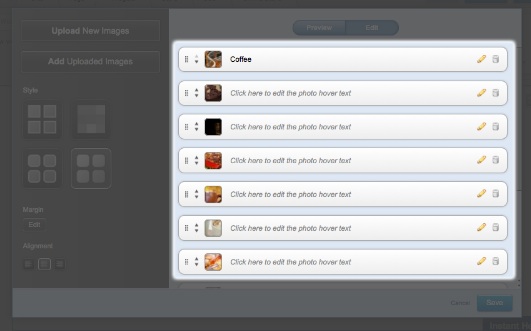
- On the left hand side, you can change the style of your Picture Gallery Widget.
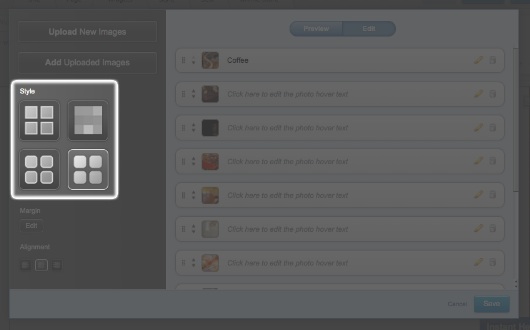
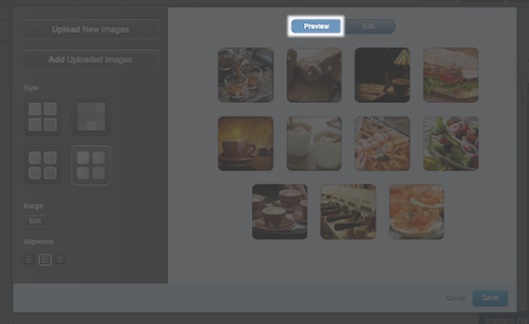
- To preview your style before you save the changes, click "Preview".
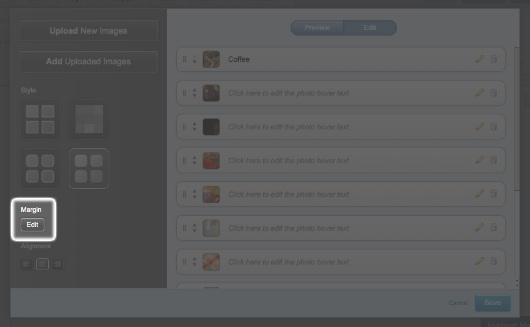
- You can also edit the margins of your Picture Gallery Widget, by clicking on "Edit," under the word "Margin" on the left hand side of the dialogue box.
Be sure to save your work.
To preview your gallery on your site, click on "Preview". In this mode, you can view your gallery and test what your pictures look like when you click on the thumbnails.
Please let us know if you have any questions or need further help.