

An email Forwarder can be a useful tool to help you work more efficiently and simplify your email routines.
A Forwarder literally forwards mail to another email address.
Possible uses:
- Your name is James, but many people call you Jim. Instead of creating and checking mail for two mailboxes, simply create one mailbox (james@yourdomain.com) and set up a Forwarder so that mail sent to jim@yourdomain.com is delivered to the mailbox for James. You do not need to create a mailbox for jim@yourdomain.com.
- If you have a name that is commonly spelled in different ways (or often misspelled): Theresa/Teresa; Katherine/Catherine; Laurie/Lori. Set up a mailbox for one and a Forwarder for the other. Then you only have to check one mailbox.
- If you handle more than one task in your business: sales, general inquiries, technical issues, refunds, etc. Set up a mailbox for one and a Forwarder for the others. Then you only have to check one mailbox. You do not need to create a mailbox for the address you are forwarding.
- A Forwarder would be useful if your name changes. You're no longer Sue.Jones@yourdomain.com. Your new name and new email address is Sue.Smith@yourdomain.com. Create a Forwarder so that you don't miss messages sent to your old email address.
- If Ricard is no longer working for your company, you can delete his mailbox and have mail sent to him forwarded to another employee's mailbox.
- If you prefer to check your mail with AOL, Gmail, or the mailbox provided by your ISP, etc., set up a forwarder to go to that mailbox. You do not need to create a mailbox for the address you are forwarding.
NOTE: If you name is James, but people call you Jim AND you want all of your mail to go to your Gmail account, simply set up two Forwarders: one for James and one for Jim, both to go to your Gmail mailbox.
If you have more ideals, let us know!
NOTE: When you forward all of your mail off-server, you can no longer take advantage of Linksky's powerful spam filtering.
Here's how to set up a Forwarder:
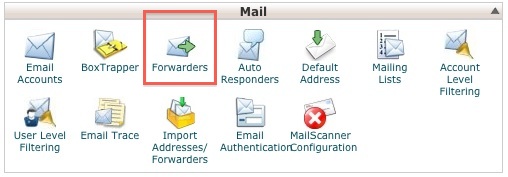
Access your cPanel. In the Mail section, click on Forwarders.
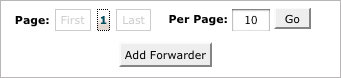
On the next page, click on the Add Forwarder button.
Type the "user" part of the email address. The domain name is already there. If you have more than one domain in your account, select the domain from the popup list.
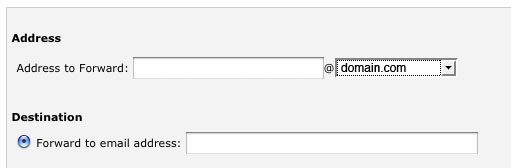
In the next box, type the address where you would like the mail to be delivered. This can be another mailbox in your account or an off-server address such as gmail or AOL.
Click the Add Forwarder button near the bottom to save your work. Then be sure to send a test message to make sure you've spelled everything properly, etc.
Set up as many Forwarders as you wish. Also, you can set up additional Forwarders so that messages are delivered to more than one mailbox.
NOTE: You can not change or edit a Forwarder. Just delete it and re-create it with your desired changes.
There is another option in the Forwarder section called "Discard with error to sender." This option will NOT deliver the message anywhere, but it will send a reply to the sender with a message of your choice. The default message is "No such person at this address."
Please let us know if you have any questions or need further help.