

Part 1 – Get Your Email Account Settings from cPanel
- See the following article:
Get email account settings from your LinkSky cPanel
Part 2 –Setup Email Account in Gmail
Use email account settings to setup email account in Gmail:
- Login to Gmail
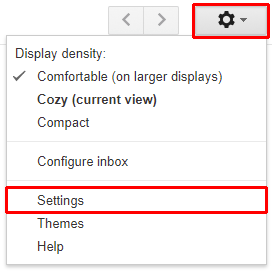
- Click the "Settings" button and then select "Settings" from the drop-down menu
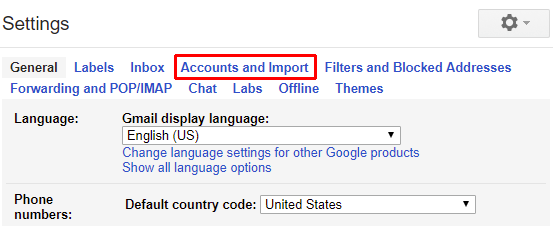
- Click "Accounts and Import"
- In the "Check mail from other accounts" section, click "Add a mail account"

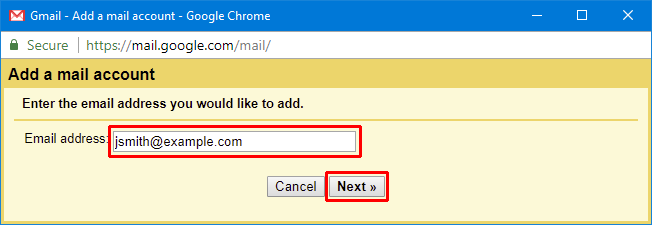
- In the "Add a mail account" window, enter your LinkSky hosted email address, and then click the "Next" button
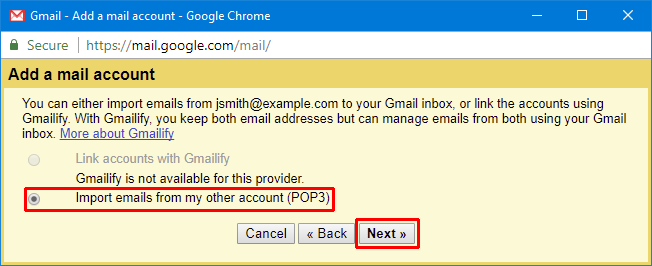
- Make sure "Import emails from my other email account (POP3)" is selected, and then click the "Next" button
-
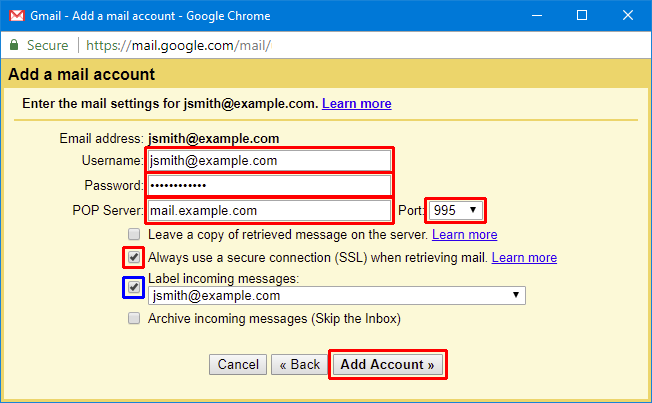
Enter your email account settings
- Username – Your full email address
- Password – Your email password (this is not the same as your cPanel password)
- POP Server – Use the Secure SSL "Incoming Server" settings from cPanel (this will usually be something like mail.yourdomain.com)
- Port – Change the port to 995
- Check "Always use a secure connection (SSL) when retrieving mail."
- We recommend checking "Label incoming messages", so you can tell emails came from your LinkSky hosted email address
- Click the "Add Account" button
Note: Gmail checks email accounts at a predefined interval that is determined by Google and cannot be changed, so new emails will only show up in your Gmail approximately every 5–15 minutes.
Please let us know if you have any questions or need further help.