

To sign up for a LinkSky Visual account, click here.
The Style Designer allows you to easily customize the visual design of your website, and make it truly stand out.
Using the Style Designer, you can set the colors, fonts and sizes of your site title, navigation, headings, paragraphs and more. The changes made using Style Designer are done at site-level. This means that you only need to adjust the setting once, and it's automatically applied to all of your pages.
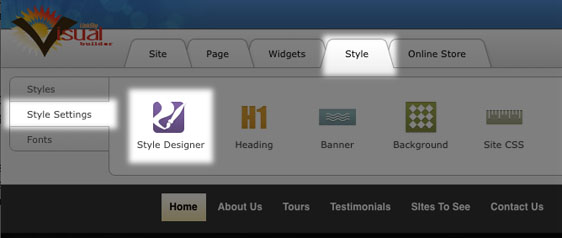
The Style Designer can be accessed by going to Style > Style Settings > Style Designer, and is split up into two sections: Color and Font.
The Color section allows you to change the color of elements such as main heading, navigation and paragraph text. The Font section is where you can customize everything from your header, right down to the spacing between the letters in your header.
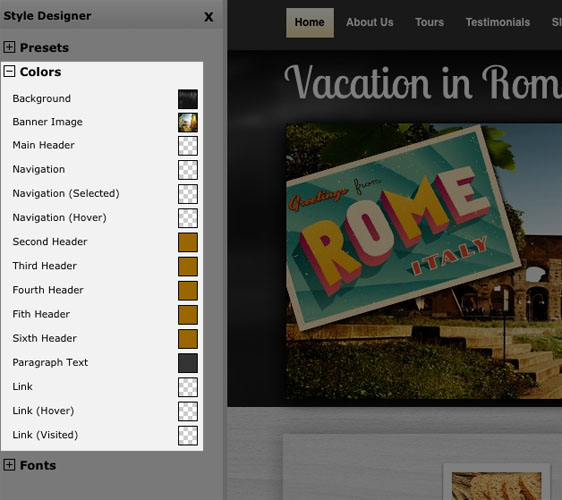
Changing the color settings of your site enables you to provide a richer experience for your visitors. Here's what you can customize:
Main Header
This is the page heading, and is displayed at the top of your pages.
Navigation
This the main navigation displayed on your site. This option allows you to set the color that your visitors will see when they first visit your site.
Navigation (Selected)
When visitors navigate to a page, the navigation link will change color to indicate which page is being viewed.
Navigation (Hover)
When visitors mouse over a navigation link, the link color will change.
Second Header, Third Header, Fourth Header, Fifth Header, Sixth Header
These refer to the Header tags used in your Text Widget. Depending on which Header tag you’ve selected, the corresponding color chosen will be displayed.
Paragraph Text
This changes the color of the text within your Text Widgets.
Link
This setting lets you easily change the color of your text links, and is applied to all the text links.
Link (Hover)
When visitors hover over a text link, the link color will change to one you have specified.
Link (Visited)
Once a visitor has clicked on a link, the display color will change to the one you've set.
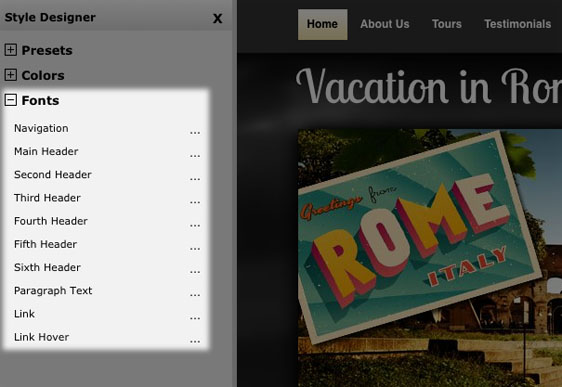
Font section
Each Font element can be individually edited. To access the font options, click on the element you wish to edit.
Font Family
This allows you to change the typeface of your font from the default font to any of the listed fonts. The fonts provided are "Google web fonts" which means they're open source and supported in all modern browsers.
Font Size
Determines the size of your font.
Text Decoration
- None
- Underline
- Strikethrough (puts a line through the middle of your text)
- Overline (puts a line above your text)
Letter Spacing
Determines the spacing between each letter.
Line Height
Determines the spacing between each line of text.
Text Transform
- Default
- Capitalize (The first letter of each word is capitalized)
- Uppercase (All letters are uppercase)
- Lowercase (All letters are lowercase)
- Inherit
Please let us know if you have any questions or need further help.