
Google Webmaster Tools

Google Webmaster Tools will help you to manage Google's indexing of your site. LinkskyVISUAL has made it possible for you to take advantage of Google Webmaster's website optimization tools. In this tutorial, we will give you step-by-step instructions on how to verify your site and submit a Sitemap to Google Webmaster Tools.

 
Step 1: Verifying Your Site with Google Webmaster

If your site is not yet published to the web, you will have to do so first, because you will need the URL (web address) during the verification process. If you have not published your site yet, please follow the steps in this tutorial: Publishing Your Site.

Once your site is published, you will see the URL on the top left-hand corner of the Sitebuilder.  If you click on that link, it will open up your site on the web.  

Visual-77.jpg

Copy the URL - in our example, it is http://20thCenturyRadio.com - and head on over to Google Webmaster Tools to get started. If you do not have a Google account, you will have to create one, otherwise sign in with your Google login details.

 
On the Webmaster Tools homepage, you will see a welcome message and below it, a box to add your site's URL. Paste or type the URL into the box and click on "Add A Site".

Visual-83.jpg
The verification screen will open up. You need to verify that you are the owner of the website you have just added.

Visual-96.png
 
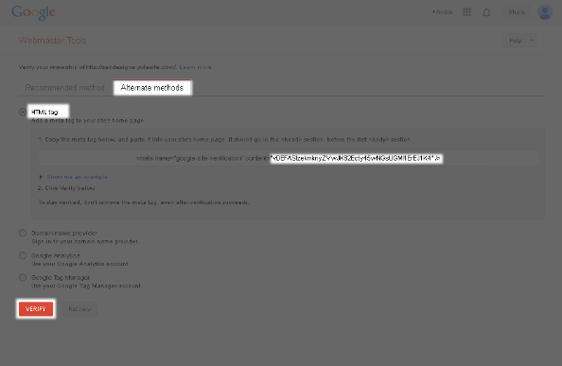
A.  Click on the "Alternate methods" tab.
 
B.  Select "HTML tag".  Please ignore the instructions that Google provides, as it is slightly different in LinkskyVISUAL, and follow these steps.
 
C.  Copy the portion of the tag next to "content," between the quotation marks.  In our example, the section to copy is: P3VSRBQmjL9T2zeNRfEBHQb8v3SbEne7bnB2CRTEcgs.
 
Use the code that is displayed on your own Google Webmaster account, otherwise it will not verify your site. Make sure that you have copied everything between the quotation marks.

Now that you have the verification code, you need to add it to your LinkskyVISUAL site. Here are the steps to do it:

  1. Go back to your LinkskyVISUAL site and make sure you are in the Sitebuilder. (Keep Google Webmaster open in a separate window.)
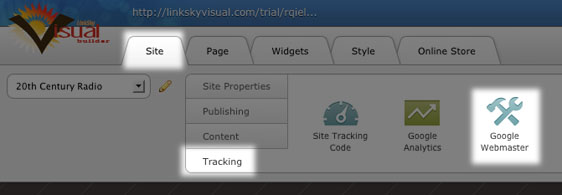
  2. Then go to Site > Tracking > Google Webmaster.
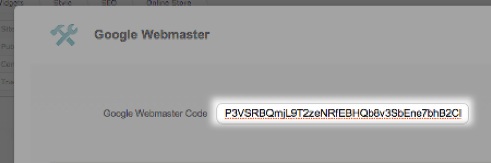
  3. Paste the verification code into the space provided.
  4. Click on "Save" to save the code to your site.
  5. In the Sitebuilder, click on "Publish." This will update your site on the web, so that Google can see it has been verified.
Visual-78.jpg

Visual-79.jpg

D. Once you have added your code to LinkskyVISUAL, go back to Webmaster Tools. Click on the "Verify" button at the bottom of the page. If you have verified your site correctly, you will see the message "Congratulations, you have successfully verified your ownership…".
 
Click on the "Continue" link underneath the message. This will take you to the "Site Dashboard" page.

Step 2: Submitting a Sitemap to Google Webmaster Tools
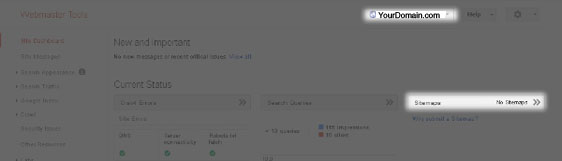
When you publish your site, LinkskyVISUAL generates a Sitemap for the site. This is not something you will notice when your site is published because it happens "behind the scenes." You can submit your Sitemap to Google, using Google Webmaster Tools. Doing this will give Google more information about your site. If you want to find out more about Sitemaps and why these are useful to Google, please see About Sitemaps.
 
The Sitemap for your published site, is the site's URL (web address), followed by "/sitemap.xml".  In our example, the Sitemap will be : http://20thCenturyradio.com/sitemap.xml.
 
To submit your Sitemap to Google Webmaster Tools:

Visual-82

  1. Log into your Google Webmaster Tools account.
  2. Make sure you are on the "Site Dashboard" page.
  3. Click on "Sitemaps". This will open up the Sitemaps screen. Make sure that you have the correct site selected. You will find the name of the selected site, just above the red "Add/Test Sitemap" button.
  4. Click on "Add/Test Sitemap". A screen will open up, with the name of the selected site. Enter "sitemap.xml" (without the " ") in the space provided.
  5. Click on "Submit Sitemap". You will see a "Sitemap submitted" message:

Congratulations! You have now successfully verified your site and submitted a Sitemap, using Google Webmaster Tools. Once Google crawls your site, you will be able to log into your Google Webmaster account to see data that will help you to optimize your site for Google.

Related Topics:

Where do I get more information on how Google Webmaster works?

Google Webmaster's Help page is packed with information.  ere is the link: Google Webmaster Help.

Help! Google Webmaster gives me errors and I don't know what they mean!

You can find detailed information on what those errors mean and how to fix them on these links: Crawl Errors and HTTP Status Codes.

Please let us know if you have any questions or need further help.

  • 0 أعضاء وجدوا هذه المقالة مفيدة
هل كانت المقالة مفيدة ؟

مقالات مشابهة

How to Resize Large Image Attachments in Outlook

When you have to send someone a large image file through email, it’s a good idea to resize the...

Getting Started with Pinterest

Linking your Pinterest boards to your Linksky Visual site  is a great way to get traffic to your...

Adding a “LinkedIn” button

Adding a LinkedIn Share button to your website is a great way to share your website with a...

What is the Online Store?

LinkSky Visual's Online Store is a feature-rich online store, that gives you one-stop store and...

25 Commonly Used Internet Marketing Terms

adwords - Google's pay-per-click platform that allows advertisers to place paid ads that come up...